Visual navigation and input support for Microsoft Excel on Windows
Never lose your place in Excel.
CellPointer keeps your current position, row context, column history, and input guidance close at hand while you continue working normally in Excel.
Why you don't lose your place
You shouldn't have to leave your current cell just to understand it.
CellPointer gives you six ways to keep your position and the information you need visible while you work. Choose a feature below to see how it helps you stay in context.
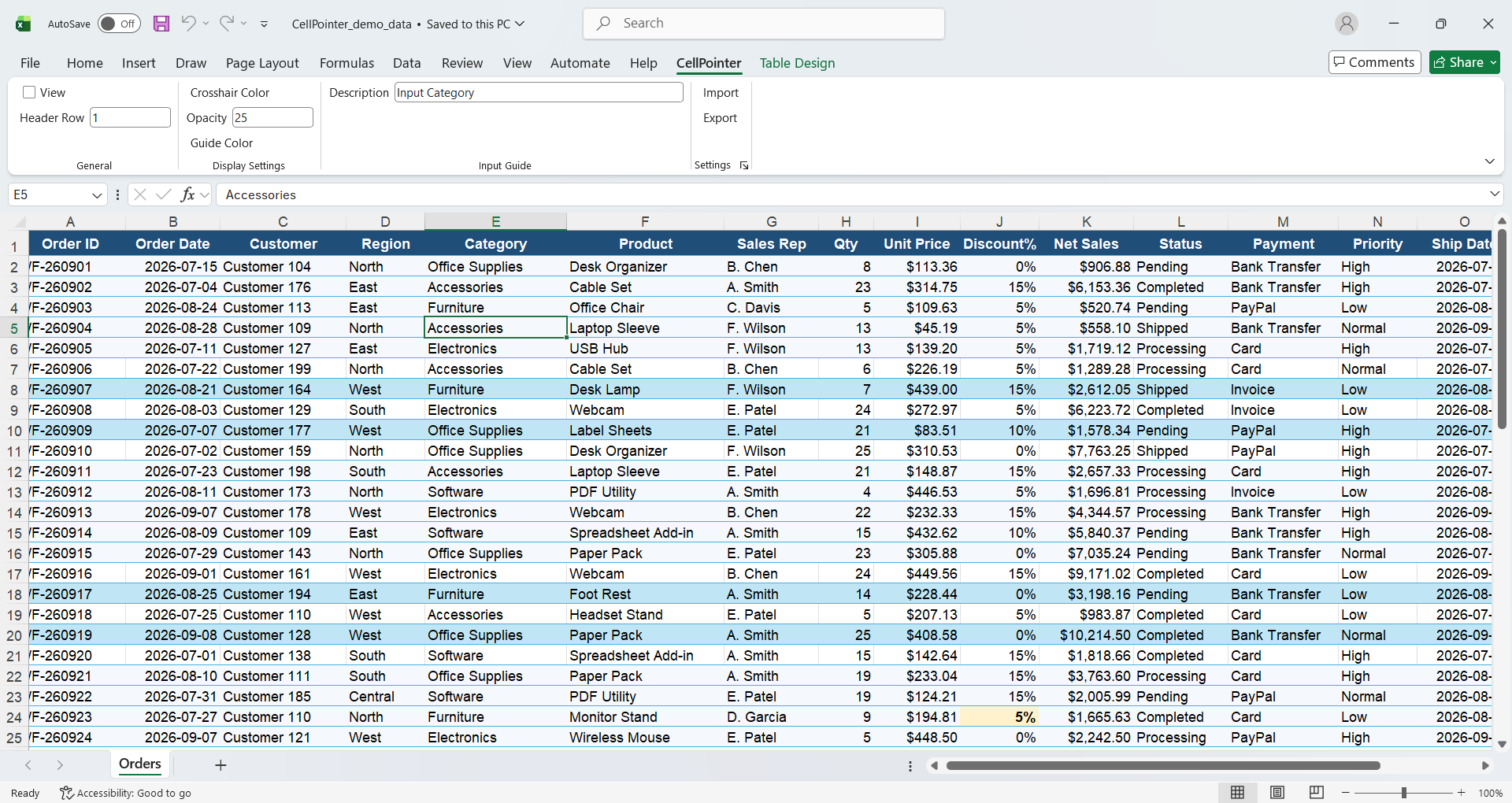
Tell CellPointer how your table is structured.
Set the header row for your worksheet, then add or edit a description for any column. CellPointer uses this structure to understand each field and provide the right context while you work.
More control when you need it
Fits your workbook. Stays out of your workbook.
Pricing
One tool. One payment. No subscription.
Get CellPointer for Windows with a one-time purchase.
Launch offer — limited to the first 20 licenses
Regular price: $29
One-time purchase — no subscription
- Crosshair row and column highlighting
- Per-column Input Guide
- Row View and Column View
- Blank-cell input from the side pane
- Customizable guide colors and opacity
- Workbook-specific settings
- Settings import and export
- Designed for Microsoft Excel on Windows
Secure one-time checkout powered by Lemon Squeezy
Compatibility: Windows desktop version of Microsoft Excel. Excel Split View is not currently supported.
Installation: CellPointer is currently distributed without a commercial code-signing certificate, so Microsoft Defender SmartScreen may display a warning.